Thumbpad
Use your Android phone as a trackpad, keyboard, media and volume remote for a Windows PC over your home Wi-Fi.
Download for WindowsWindows 10 or 11 · free · installs in seconds
Watch the setup
Get set up
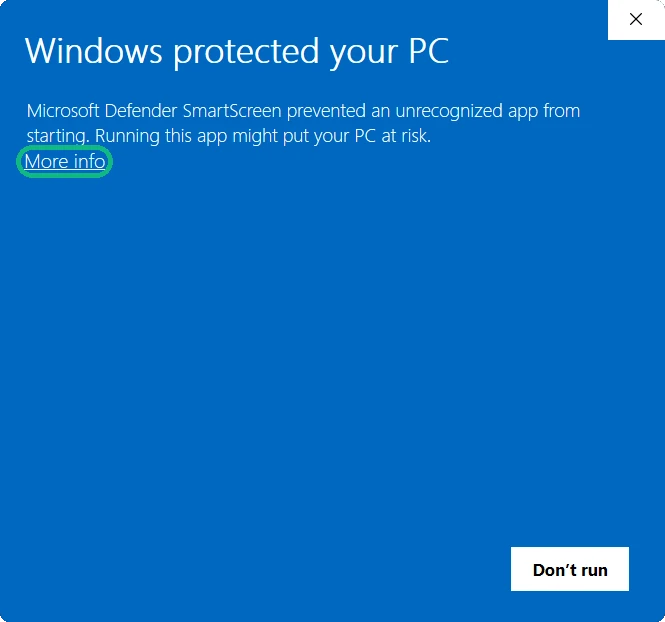
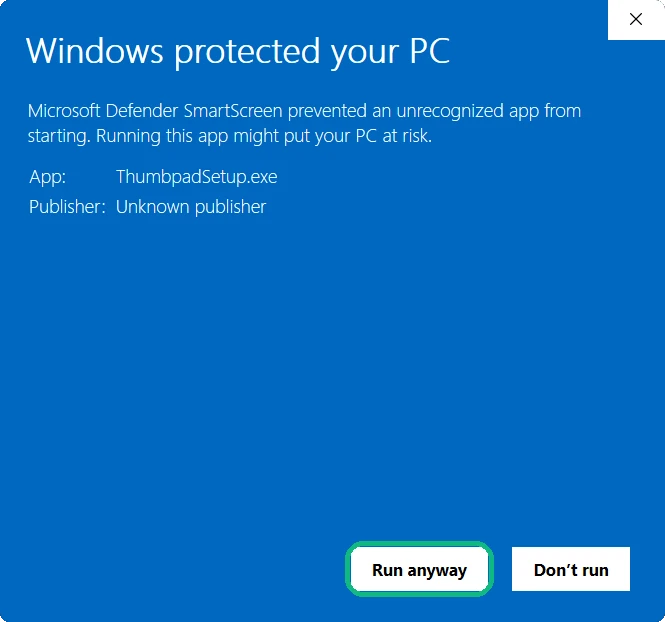
- Run ThumbpadSetup.exe. It isn't code-signed yet, so Windows may show this blue box: click More info, then Run anyway.
 1
1
 2
2
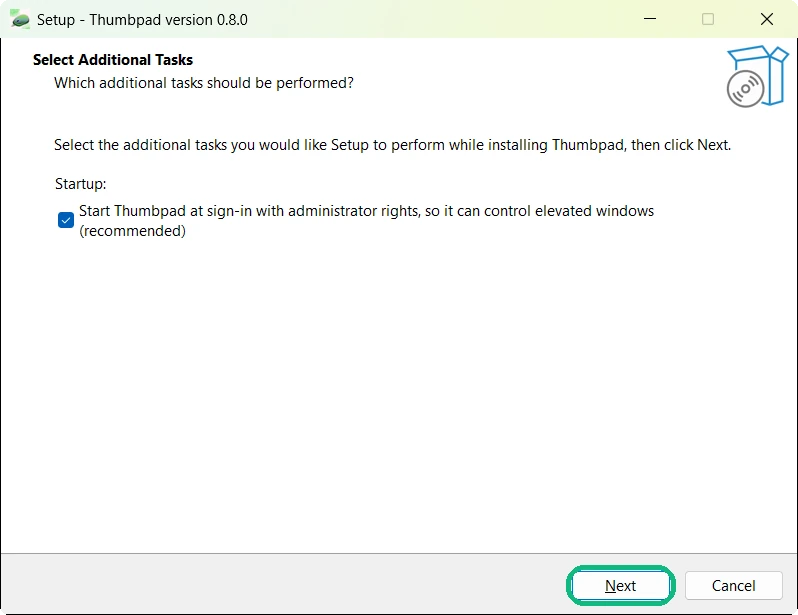
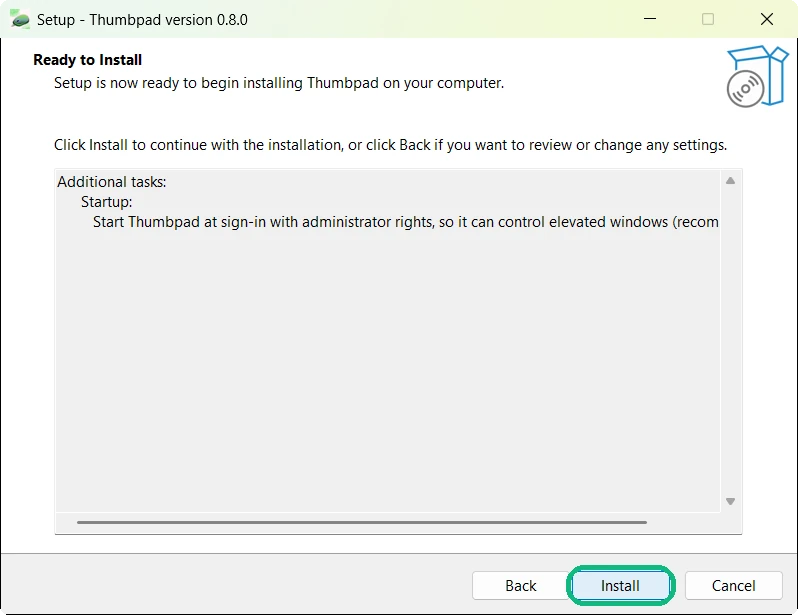
- Click Next, then Install. If Windows asks to allow changes, click Yes so Thumbpad starts with Windows. A pairing window with a QR code opens when it's done.
 1
1
 2
2
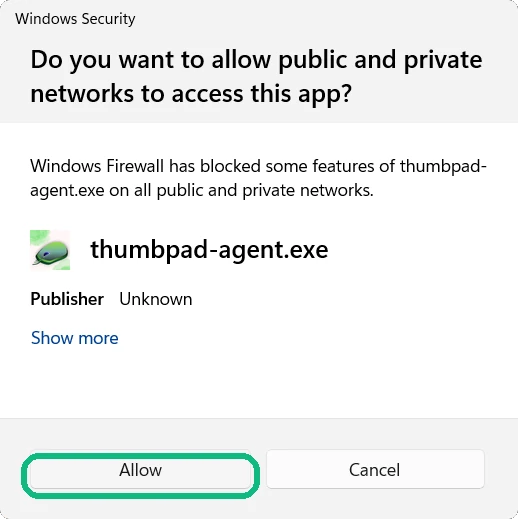
- When Windows asks about network access, click Allow. Your phone reaches the PC over your local Wi-Fi.
- Install the Thumbpad app from Google Play on your Android phone. Keep the phone on the same Wi-Fi network as the PC.
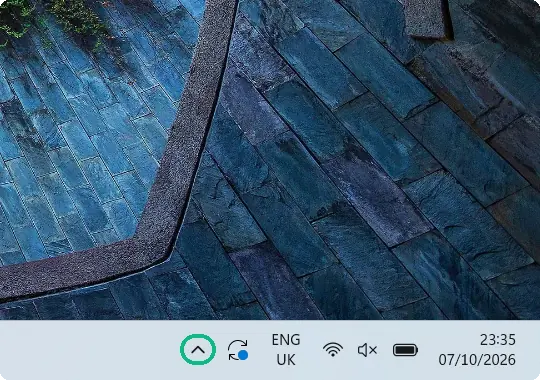
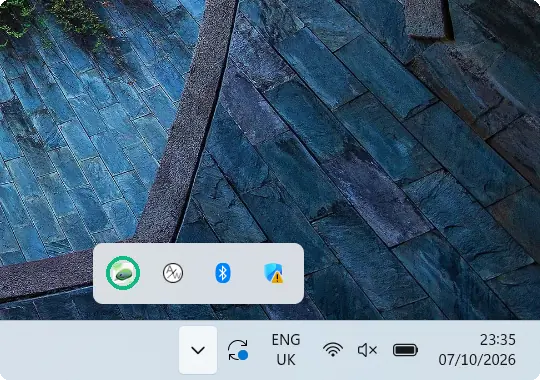
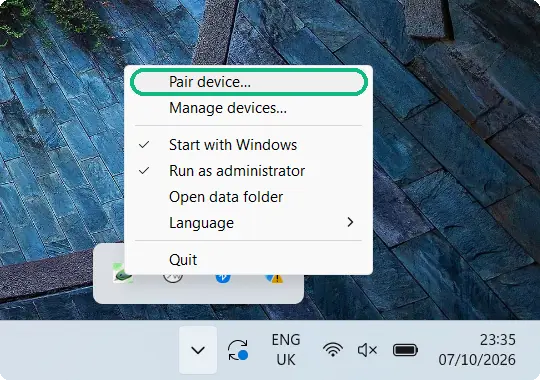
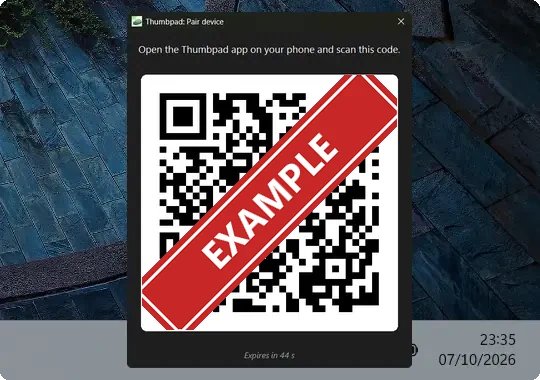
- On your PC, open the hidden icons (^) near the clock, right-click the Thumbpad icon and choose Pair device…. Then tap Pair a PC in the app and scan the QR code. That's the only time you'll need to pair.
 1
1
 2
2
 3
3
 4
4
Get the phone app

Thumbpad for Android
Free on Google Play. Pair it with the Windows app above.